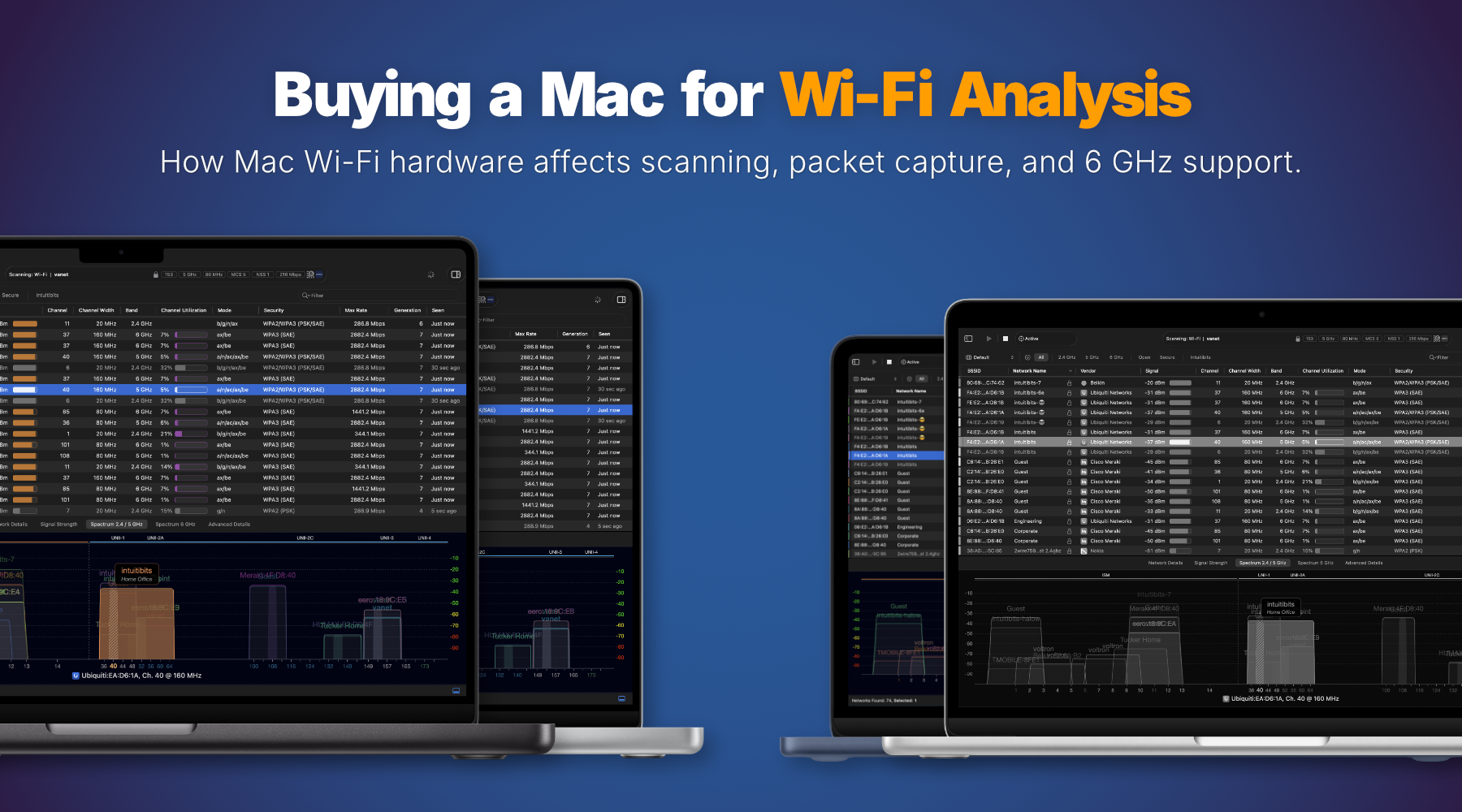
Choosing the Best Mac for Wi-Fi Analysis
Choosing a Mac for Wi-Fi analysis isn’t as simple as comparing processors or memory configurations. When running WiFi Explorer and other professional Wi-Fi tools, the Mac’s wireless hardware and macOS version have a much greater impact on your experience than CPU performance or RAM.
This guide explains what to look for when buying a Mac for Wi-Fi analysis. It focuses on WiFi Explorer and WiFi Explorer Pro 3, while also covering WiFi Signal, where connection monitoring is relevant, and Airtool 2, where monitor mode and packet capture come into play. Because these applications all depend on Apple’s Wi-Fi hardware and drivers, the recommendations apply across the entire lineup.
The good news is that almost any modern Mac has more than enough processing power for these applications. The real differences come down to the Wi-Fi hardware Apple includes in each model and how it’s supported by macOS. If your workflow depends on passive scanning, packet capture, or 6 GHz analysis, choosing the right Mac makes all the difference.
Why Choosing the Right Mac Matters
Buying a Mac for Wi-Fi analysis is different from buying a Windows laptop. On many Windows systems, you can replace or add a Wi-Fi adapter if the built-in hardware doesn’t support the features you need. On a Mac, that’s generally not an option.
When you buy a Mac, you’re choosing the Wi-Fi hardware, Apple’s Wi-Fi drivers, and the version of macOS that ties everything together. Those three components determine whether advanced features such as monitor mode, passive scanning, 6 GHz support, and reliable packet capture are available. If your workflow depends on those capabilities, it’s worth understanding the differences before deciding which Mac to buy.
Who Should Read This?
This guide is for anyone choosing a Mac for Wi-Fi analysis, including those who:
- Are buying their first Mac specifically for Wi-Fi analysis
- Are replacing an older Intel Mac
- Are moving from a Windows laptop and want to understand the differences in Mac Wi-Fi hardware
- Rely on monitor mode or passive scanning
- Need to analyze 6 GHz networks
- Want a Mac that will remain capable for professional Wi-Fi work over the next several years
If that sounds like you, this guide will help you choose the right Mac and understand the trade-offs between different models.
The Short Answer
If you’re looking for a quick recommendation, start here.
| If you… | Recommendation |
|---|---|
| Need a Mac for general Wi-Fi analysis | Any Apple silicon Mac with Wi-Fi 6E support is an excellent choice. |
| Perform passive scanning regularly | Check the latest compatibility information for your Mac and macOS version, especially if you’re using macOS Tahoe on the latest Apple Wi-Fi hardware. |
| Already own an Intel Mac | Keep using it if it supports macOS 13.5 or later. Upgrade only if you need to analyze 6 GHz networks or want newer hardware. |
| Are buying specifically for professional Wi-Fi work | Choose a Mac with Wi-Fi 6E support, and verify the current compatibility status of advanced features such as passive scanning before making your purchase. |
Keep reading for the reasoning behind each of these, plus a full compatibility matrix.
What Really Matters
When people ask “What’s the best Mac for WiFi Explorer?” they usually assume the answer comes down to CPU speed, memory, or storage, much like choosing a Mac for video editing or software development. For most Wi-Fi analysis workflows, that assumption doesn’t hold.
WiFi Explorer, WiFi Explorer Pro 3, WiFi Signal, and Airtool 2 are lightweight applications. Their primary job is to communicate with the Mac’s Wi-Fi hardware, capture and interpret 802.11 frames, and present the results in a useful way. Those tasks place relatively modest demands on modern processors, memory, and storage.
The factors that actually determine your experience are:
- The macOS version installed on the Mac
- The specific Wi-Fi chipset built into that Mac
- Whether that chipset supports the 6 GHz band (Wi-Fi 6E and Wi-Fi 7)
- Whether passive scanning and monitor mode work reliably on that chipset under the installed macOS version
For most users, your experience is determined far more by the Mac’s Wi-Fi hardware and macOS version than by its processor or memory configuration. There are exceptions, such as working in extremely high-density environments or using compatible spectrum analyzers, but for typical Wi-Fi analysis, these factors have a much smaller impact than choosing the right Wi-Fi hardware.
System Requirements
Before looking at specific Mac models, here are the baseline requirements.
macOS. WiFi Explorer, WiFi Explorer Pro 3, WiFi Signal, and Airtool 2 require macOS 13.5 or later. This is the minimum supported version. Anything older isn’t supported, regardless of the Mac model.
Processor architecture. All four applications run natively on both Intel and Apple silicon Macs. Processor architecture has very little impact on their performance. The more important considerations are the Mac’s Wi-Fi hardware and the version of macOS it’s running.
Memory and storage. These applications are lightweight, so even a base-model MacBook Air has more than enough CPU performance, memory, and storage for typical Wi-Fi analysis. Additional RAM can help in very high-density environments with a large number of nearby networks, but for most users it shouldn’t influence the buying decision. If your primary goal is Wi-Fi analysis, your budget is generally better spent on a Mac with the right Wi-Fi hardware.
Do You Need the Latest Mac?
This is probably the most common misconception among people evaluating a Wi-Fi analysis Mac, so it’s worth addressing directly: a Mac does not need to support the latest Wi-Fi standard in order to scan and analyze networks that use that standard.
The Mac’s Wi-Fi radio is used to listen to traffic and decode it, not to associate with every network the way a laptop would in normal daily use. WiFi Explorer decodes management frame information according to modern IEEE 802.11 standards even when the Mac’s own radio predates those standards.
A couple of concrete examples make this clearer:
- A Mac with Wi-Fi 6 hardware can discover and analyze nearby Wi-Fi 7 networks. It can see the access points, read their beacons and probe responses, and report on channel, security, and capability information, even though the Mac itself has never associated with a Wi-Fi 7 network and never will.
- A Mac with Wi-Fi 5 hardware can still display detailed information about Wi-Fi 6 networks in range.
The real limitation isn’t the Wi-Fi generation supported by the Mac. It’s the frequency band the Mac’s radio can tune to. A radio that can only reach 2.4 GHz and 5 GHz simply cannot see anything transmitting in the 6 GHz band, no matter how new or old the Wi-Fi standard involved is. That distinction, generation versus band, is the key to understanding almost every compatibility question in this guide.
Why Wi-Fi 6E Support Is Worth Having
Given that band access, not Wi-Fi generation, is the real constraint, here’s the practical implication: if you can afford a Mac with Wi-Fi 6E support, get one.
Wi-Fi 6E added support for the 6 GHz band on top of the existing 2.4 GHz and 5 GHz bands. A Mac with a Wi-Fi 6E (or later) radio can scan and analyze 6 GHz networks in addition to the traditional two bands. A Mac without Wi-Fi 6E cannot scan 6 GHz networks at all. This isn’t because of a software restriction, but because its radio hardware is physically incapable of tuning to those frequencies. It will continue to work normally on 2.4 GHz and 5 GHz; it simply has a blind spot in the 6 GHz range.
For most home users and small offices, that blind spot might not matter yet. But 6 GHz deployments are becoming increasingly common in enterprise, education, and healthcare environments, where the extra spectrum and lower interference are genuinely valuable. If you’re troubleshooting networks you don’t control, or doing consulting work across different sites, you’ll eventually run into 6 GHz access points.
Wi-Fi 6E support is also reasonably future-proof. Wi-Fi 7 networks operate across the same three bands (2.4, 5, and 6 GHz), so a Wi-Fi 6E-capable radio already covers the spectrum that matters, even without full Wi-Fi 7 support. Before purchasing a specific Mac model, it’s worth checking Apple’s Wi-Fi specifications to confirm whether it supports Wi-Fi 6E or Wi-Fi 7.
Apple Silicon and Intel Compatibility
Intel Macs
Intel Macs remain fully supported, provided they can run macOS 13.5 or later. If you already own one, there’s no compelling reason to replace it solely to run WiFi Explorer. However, because no Intel Mac supports Wi-Fi 6E, they cannot scan or analyze 6 GHz networks. If working with 6 GHz deployments is important to your workflow, upgrading to an Apple silicon Mac with Wi-Fi 6E is worthwhile.
Apple Silicon Macs
Apple silicon Macs are fully supported. The key differences between models aren’t the M-series processors themselves, but the Wi-Fi hardware Apple pairs with them and how that hardware is supported by each version of macOS. For Wi-Fi analysis, the Wi-Fi hardware and macOS version matter far more than whether you’re using an M2, M3, M4, or M5 processor.
Current Compatibility Notes
This section reflects current testing and may change as Apple releases new versions of macOS. Treat it as a snapshot rather than a permanent compatibility guide, and check for updates before making a purchase decision if advanced Wi-Fi analysis features are important to your workflow.
M1 Macs
M1 Macs run WiFi Explorer and the other Intuitibits applications natively, but they have known issues affecting channel hopping and packet capture. They’re suitable for general Wi-Fi analysis but aren’t recommended for workflows that depend heavily on passive scanning or packet capture with Airtool 2.
Macs with Apple N1 Wi-Fi Hardware
This includes the MacBook Pro with M5 Pro or M5 Max and the MacBook Air with M5. Under macOS Tahoe, monitor mode works correctly, but channel switching while in monitor mode is unreliable, making passive scanning unavailable.
Passive scanning works by tuning the Wi-Fi radio to each channel in sequence and listening for beacon frames broadcast by nearby access points. If the hardware or driver can’t switch channels reliably, access points may be missed or reported inconsistently. This isn’t a WiFi Explorer issue, but a limitation of the current Wi-Fi driver implementation in macOS Tahoe.
MacBook Neo
MacBook Neo uses Apple A18 Pro Wi-Fi hardware and exhibits the same passive scanning limitation under macOS Tahoe. The underlying cause is the same: unreliable channel switching while in monitor mode.
Compatibility Update: macOS Golden Gate
Current testing indicates that Apple has resolved the channel-switching issue in the macOS Golden Gate developer beta. Passive scanning works correctly again on Macs with Apple N1 and A18 Pro Wi-Fi hardware, and the beta has been stable in testing so far.
Assuming the fix remains in the public release, these Macs should once again provide full passive scanning support. As with any beta software, it’s worth confirming compatibility after the final release before relying on it in production or client-facing environments.
Which Mac Should You Buy?
The best Mac for Wi-Fi analysis depends on your workflow more than your budget. Fortunately, WiFi Explorer doesn’t require a high-end system. For most users, choosing the right Wi-Fi hardware is far more important than choosing the fastest processor.
Best value. A MacBook Air with Wi-Fi 6E support is the best choice for most people. It’s lightweight, quiet, and more affordable than a MacBook Pro. Since WiFi Explorer doesn’t benefit significantly from additional CPU performance or memory, it delivers essentially the same scanning and analysis experience as more expensive models.
Best for enterprise WLAN engineers. A MacBook Pro with Wi-Fi 6E is worth considering if you prefer a larger display, more ports, support for multiple external monitors, or frequently run several applications alongside WiFi Explorer. These advantages improve your overall workflow, not WiFi Explorer’s performance. A MacBook Air with comparable Wi-Fi hardware scans networks just as effectively.
Already have an Intel Mac? Keep using it, provided it supports macOS 13.5 or later. There’s no compelling reason to replace a working Intel Mac just to run WiFi Explorer. While Intel Macs can’t scan the 6 GHz band, they remain excellent platforms for analyzing 2.4 GHz and 5 GHz networks.
The latest Macs and passive scanning. The MacBook Pro with M5 Pro or M5 Max, the MacBook Air with M5, and the MacBook Neo are all excellent choices for Wi-Fi analysis. Under macOS Tahoe, channel switching while in monitor mode is unreliable, which means passive scanning isn’t currently available. However, monitor mode, active scanning, network analysis, and fixed-channel packet capture continue to work as expected. Current testing indicates that macOS Golden Gate restores passive scanning, making this a temporary limitation rather than a reason to avoid these Macs.
Compatibility Matrix
This matrix is organized by Mac hardware rather than by Wi-Fi generation, since that’s the more useful way to check your own machine or a model you’re considering. It will be updated as Apple ships new hardware and macOS updates.
| Mac | Wi-Fi Hardware | 6 GHz Scanning | Monitor Mode | Passive Scanning | Recommended | Last Verified |
|---|---|---|---|---|---|---|
| Intel Macs | Wi-Fi 5 / 6 | No | Yes | Yes | No1 | July 2026 |
| MacBook Air / Pro (M1) | Wi-Fi 6 | No | Yes, with limitations | Unreliable | No | July 2026 |
| MacBook Air / Pro (M2, M3, M4) | Wi-Fi 6 or 6E (model dependent) | Model dependent | Yes | Yes | Yes2 | July 2026 |
| MacBook Pro (M5 Pro / M5 Max), MacBook Air (M5) | Apple N1 Wi-Fi 7 | Yes | Yes | Not usable on macOS Tahoe Works on macOS Golden Gate beta |
Yes3 | July 2026 |
| MacBook Neo | Apple A18 Pro Wi-Fi 6E | Yes | Yes | Not usable on macOS Tahoe Works on macOS Golden Gate beta |
Yes3 | July 2026 |
1 Existing Intel Macs remain fully supported if they run macOS 13.5 or later, but they aren’t recommended for new purchases. They don’t support 6 GHz scanning, and future versions of macOS and WiFi Explorer will eventually end support for Intel-based Macs.
2 Wi-Fi 6E models are recommended if you need to analyze 6 GHz networks.
3 Recommended overall. Passive scanning is currently affected by a macOS Tahoe issue that appears to be resolved in the macOS Golden Gate developer beta.
Frequently Asked Questions
Does WiFi Explorer require a MacBook Pro? No. A MacBook Air handles WiFi Explorer just as well. The MacBook Pro is worth considering for its display, ports, and multitasking capabilities, not because it offers a significant Wi-Fi analysis advantage.
Does more RAM make WiFi Explorer faster? It can help in very high-density environments with a large number of nearby networks, but memory generally should not be a major factor when choosing a Mac. For most environments, even a Mac with the minimum available RAM will run WiFi Explorer well.
Do I need a Wi-Fi 7 Mac to analyze Wi-Fi 7 networks? Not necessarily. Your Mac’s Wi-Fi generation determines what it can associate with, not what it can discover and analyze. A Wi-Fi 6 Mac can still see and decode information from nearby Wi-Fi 7 access points because WiFi Explorer parses management frames according to current IEEE 802.11 standards.
If you need to capture Wi-Fi 7 traffic, however, you’ll need a Mac with Wi-Fi 7 hardware. Earlier Wi-Fi hardware cannot capture Wi-Fi 7 packets, even though it can still discover Wi-Fi 7 networks and display their advertised capabilities.
Should I buy a Wi-Fi 6E Mac? Yes, whenever it’s a realistic option. It allows you to scan the 6 GHz band, which a non-6E Mac cannot see because of hardware limitations. It is also a practical way to extend the useful life of your purchase as 6 GHz deployments become more common.
Final Recommendations
- Best overall value: A MacBook Air with Wi-Fi 6E support offers the best balance of portability, price, and capability for most users.
- Best for WLAN professionals: A MacBook Pro with Wi-Fi 6E support is worth considering if you prefer a larger display, more ports, or frequently work with multiple applications and external monitors.
- Already own an Intel Mac? Keep using it if it supports macOS 13.5 or later. Replace it only if you need to analyze 6 GHz networks or are ready to move to newer Apple silicon hardware.
- Buying a new Mac? Prioritize Wi-Fi 6E support so you can analyze 6 GHz networks. If passive scanning is an important part of your workflow, check the latest compatibility information for your macOS version.
For most users, choosing the best Mac for Wi-Fi analysis isn’t about buying the fastest processor or the most expensive model. It’s about selecting a Mac with the right Wi-Fi hardware for your needs. Whether you’re troubleshooting a home network, performing enterprise site surveys, or capturing packets, the combination of Apple’s Wi-Fi hardware and macOS support has a far greater impact on your experience than CPU performance or memory.
About the Author: Adrian Granados