Understanding the Scan Modes in WiFi Explorer Pro
Wi-Fi scanning is the process by which a client device or application discovers wireless networks within range of a Wi-Fi adapter. During a scan, the device gathers information about each network, including its signal strength, channel, security configuration, and capabilities. Client devices use these details to decide which networks they can join or roam to. Applications such as WiFi Explorer Pro use the same information to help users monitor and troubleshoot wireless infrastructure.
This article begins with an overview of Wi-Fi scanning and then explains how WiFi Explorer Pro implements its three scan modes. Understanding the differences among these modes will help you choose the right one and set realistic expectations for scan speed, range, and completeness. The implementation details discussed here apply specifically to WiFi Explorer Pro and the macOS frameworks and libraries it uses. Other platforms and applications may behave differently.
How Does Wi-Fi Scanning Work?
Wi-Fi scanning can be either active or passive. During an active scan, a client searches for networks by transmitting probe requests and listening for probe responses from access points within range. Each response describes the configuration and capabilities of a network managed by the responding access point.
During a passive scan, the client listens for beacon frames instead of soliciting responses. Access points transmit beacons to announce their networks and describe their configuration and capabilities. To discover a network passively, the client must remain on its channel long enough to receive a beacon. At the default beacon interval, an access point transmits approximately 10 beacons per second.
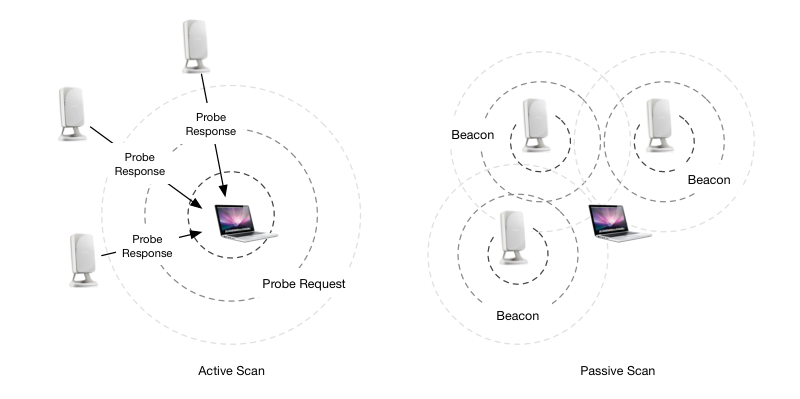
Active vs. Passive Scanning
Active scanning is the standard way to discover nearby wireless networks quickly. Probe request and probe response frames are designed for this purpose, and nearly all Wi-Fi drivers support the process. System frameworks also let applications initiate active scans without managing low-level tasks such as channel changes, probe transmission, and response processing.
From a troubleshooting perspective, however, active scanning has limitations. A wildcard probe request may not reveal networks that suppress their SSIDs, commonly called hidden networks. Active scans may also have less range because client devices often transmit at lower power than access points. An access point that cannot decode a distant client’s probe request will not send a response.
Passive scanning can detect beacons from more distant access points and identify the presence of hidden networks. However, it requires additional driver capabilities and application logic. The Wi-Fi interface must support monitor mode, and the driver must provide metadata such as the channel and received signal strength. A passive scanner must also cycle through supported channels, capture beacon frames, and interpret the metadata headers supplied by the driver.
Both beacon and probe response frames contain information about a network’s configuration and capabilities. Some details appear in fixed fields within the frame body. Most, however, are carried in Information Elements, which use a TLV (type-length-value) format. Depending on the frame type, some Information Elements are required and others are optional. Manufacturers may also include proprietary Vendor Specific elements. Devices that do not recognize a Vendor Specific element generally ignore it.

Scan Modes in WiFi Explorer Pro
WiFi Explorer Pro offers three main scan modes: active, passive, and directed. Active and passive modes use the Mac’s built-in Wi-Fi adapter to perform the corresponding scan types. Directed mode is a form of active scanning that targets a network by name, or SSID, rather than searching only with wildcard probe requests. Each mode has different advantages and limitations.

Active Scan Mode
In active scan mode, WiFi Explorer Pro uses Apple’s CoreWLAN framework to initiate a scan. The Mac can remain associated with a network during this process, but scanning still interrupts normal data transmission while the adapter visits other channels. For that reason, you should not run throughput tests while WiFi Explorer Pro—or another Wi-Fi scanner—is actively scanning.
Active scan mode is the default in WiFi Explorer Pro and the only scan mode available in the standard version of WiFi Explorer.
During an active scan, CoreWLAN transmits a series of wildcard, or null, probe requests on supported channels in the 2.4 and 5 GHz bands. A wildcard probe request does not identify a particular SSID. Access points that receive it can respond with information about the networks they manage. However, an access point may omit a network configured to hide its SSID. Each probe response is addressed directly to the client that sent the request.

After transmitting probe requests on a channel, CoreWLAN waits briefly for responses before moving to the next channel. Apple does not document the exact dwell times, but a complete scan typically takes three to five seconds. While running, WiFi Explorer Pro requests a new active scan every three seconds. In testing, shorter intervals have caused CoreWLAN errors.
When the scan finishes, CoreWLAN returns a dictionary for each discovered network. The results include the network’s BSSID, SSID, RSSI, noise level, beacon interval, channel, network type, physical mode, security type, and Information Elements. CoreWLAN has returned incorrect physical-mode and security values for some configurations, so WiFi Explorer Pro derives those details from the Information Elements instead. The app then uses the combined data to populate its network list, views, and charts.
One limitation of active scanning is that probe requests sent to the broadcast address do not receive acknowledgments. They still contend for access to the channel, but the sender cannot know whether another transmission or non-802.11 interference corrupted them. Because broadcast frames are not acknowledged, the sender also does not retry them at the MAC layer. As a result, a network with a previously strong signal may disappear from one scan if its access point did not receive a probe request. Users sometimes interpret this gap as a sudden drop in signal strength. When a chart shows a complete absence of data, as in the figure below, a lost probe request is a more likely explanation.

Passive Scan Mode
In passive scan mode, WiFi Explorer Pro combines several frameworks and libraries. CoreWLAN does not expose a direct passive-scanning function, so the app first places the built-in Wi-Fi adapter in monitor mode. This mode captures 802.11 frames within range without associating with an access point.
Monitor mode requires the adapter to be disconnected from its current network. If the Mac is associated when passive scanning begins, WiFi Explorer Pro disconnects it before enabling monitor mode. The app reconnects when the scan stops or the user returns to active scan mode.
Once the adapter enters monitor mode, WiFi Explorer Pro uses the user-level packet-capture library libpcap. Wireshark and Airtool use the same library. WiFi Explorer Pro configures the capture to collect only beacon and probe response frames received by the adapter. It also sets the adapter’s link-layer header type to Radiotap. Radiotap lets the driver attach metadata that does not appear in the original 802.11 frame. For more information about link-layer header types, see this article.

Radiotap defines many fields, although a driver does not include every field in every header. For passive scanning, WiFi Explorer Pro expects the following information:
- Channel: The frequency on which the adapter received the frame.
- Antenna signal: The RF signal power measured at the antenna when the frame arrived.
- Antenna noise: The RF noise power measured at the antenna when the frame arrived.
- Flags: Indicators such as whether the frame includes an FCS (Frame Check Sequence) or uses a short preamble.
While capturing frames, WiFi Explorer Pro uses CoreWLAN to visit each supported channel in the 2.4 and 5 GHz bands. The app normally listens on each channel for 120 milliseconds. If it detected no 802.11 activity on that channel during the previous scan, it reduces the dwell time to 60 milliseconds. In the worst case, with activity on every channel, a passive scan takes approximately eight seconds. That total includes both the dwell time on each channel and the time required to change channels.
WiFi Explorer Pro may receive several beacons from the same network during a dwell period. For each network, the scan results retain the last frame received and the highest observed signal and noise values during that period. Passive mode can also detect hidden networks because they must still transmit beacon frames. The SSID Information Element in those beacons contains no SSID value, so WiFi Explorer Pro displays the name <Hidden Network>.

After the scan, WiFi Explorer Pro parses the captured frames and creates dictionaries that match the structure of CoreWLAN’s active-scan results. The rest of the application can then use data from either scan mode to populate the same network list, views, and charts.
Directed Scan Mode
Directed scan mode is a form of active scanning in which each probe request includes the SSID of a target network. If you know the SSID, this mode can search for a specific network—including a hidden one—while the Mac remains associated with an access point. Directed mode uses the same CoreWLAN framework and result-processing path as active mode.

Summary
WiFi Explorer Pro provides active, passive, and directed scan modes. Active mode is the default. It uses CoreWLAN to transmit wildcard probe requests and collect responses from access points within range. The Mac can remain associated with a network, although scanning temporarily interrupts normal traffic. Active mode may miss hidden networks and can have less range because clients often transmit at lower power than access points.
Passive mode uses CoreWLAN, monitor mode, and libpcap to capture beacon and probe response frames while the adapter cycles through supported channels. Radiotap headers provide metadata such as signal strength, noise, and channel information. Because monitor mode requires the adapter to disconnect, passive scanning cannot run while the Mac remains associated with a network. However, it can detect the presence of hidden networks and may receive beacons from access points beyond the range of an active scan.
Directed mode is a targeted form of active scanning. It includes a known SSID in each probe request, allowing WiFi Explorer Pro to search for a specific network, including a hidden network, while the Mac remains associated.
About the Author: Adrian Granados